
SECURELY CONNECTING TO OUR SMS SERVICE.
IP whitelisting primarily enhances security by restricting access to only trusted IP addresses, which reduces unauthorized access and malicious activity. It also offers better control over the network, improved performance by minimizing unwanted traffic, and helps meet compliance requirements for protecting sensitive data.
Whitelisting your ip

Desktop Client
Extend the power of SMS to your desktop with the Bulk SMS Text Messenger. The BulkSMS Text Messenger is a software programme that allows you to send SMS text messages from the desktop of your computer.
The Bulk SMS Desktop Client has the familiar look and feel of an e-mail client and is quick to install, easy to use, and readily available on your desktop.

VPN SOLUTION
- Download and install the OpenVPN client for your platform.
- Import the supplied Configuration File.
- Click Connect
That simple!
- Download and install OpenVPN Connect: Download
- Run the downloaded installer and follow the on-screen prompts to complete the installation.
- Open the OpenVPN Connect app:
- Once the installation is complete, launch the OpenVPN Connect app.
- Review and agree to the data usage policy.
- Import a VPN profile
- Import from a file: Use the provided .ovpn profile file provided to you via e-mail. Click File and browse to the location of the profile on your computer.
- Connect to the VPN
- Once the profile is imported, select it and click Connect.
- OpenVPN Connect may prompt you to allow changes to your system to create the VPN connection. Click Yes.
- Once connected, the VPN status shows as active.
- Testing your connection
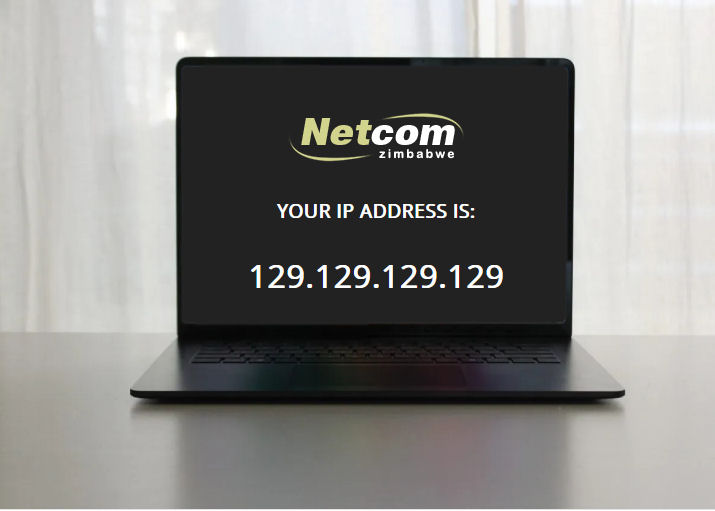
- Once connected, visit www.netcomzw.com/myip
- The ip address displayed should be: 5.101.140.78
- Download and install OpenVPN Connect: Download
- Open the .dmg file and follow the prompts to drag the OpenVPN Connect app to the Applications folder.
- Available for: Catalina, Big Sur, Monterey, Ventura, Sonoma and Sequoia
- Open the OpenVPN Connect app:
- Once installed, open the OpenVPN Connect app from the Applications folder.
- Review and agree to the data usage policy.
- Import a VPN profile
- Import from a file: Use the provided .ovpn profile file provided to you via e-mail. Click File and browse to the location of the profile on your computer.
- Connect to the VPN
- Once the profile is imported, select it and click Connect.
- OpenVPN Connect may prompt you to allow changes to your system to create the VPN connection. Click Yes.
- Once connected, the VPN status shows as active.
- Testing your connection
- Once connected, visit www.netcomzw.com/myip
- The ip address displayed should be: 5.101.140.78
- Download and install OpenVPN Connect:
- Open the Google Play Store on your Android device.
- Search for OpenVPN Connect.
- Tap Install to download and install the app.
- Open the OpenVPN Connect app:
- Once installed, open the OpenVPN Connect app.
- Review and agree to the data usage policy.
- Import a VPN profile
- Import from a file: Use the provided .ovpn profile file provided to you via e-mail. Click File and browse to the location of the profile on your device storage
- Connect to the VPN
- Once the profile is imported, select it and click Connect.
- If prompted, grant OpenVPN Connect permission to create VPN configurations on your device.
- Once connected, the VPN status shows as active.
- Testing your connection
- Once connected, visit www.netcomzw.com/myip
- The ip address displayed should be: 5.101.140.78
- Download and install OpenVPN Connect:
- Open the App Store on your iOS device.
- Search for OpenVPN Connect.
- Tap the Get button to download and install the app.
- Open the OpenVPN Connect app:
- Once installed, open the OpenVPN Connect app.
- Review and agree to the data usage policy.
- Import a VPN profile
- Import from a file: Use the provided .ovpn profile file provided to you via e-mail.
- Connect to the VPN
- Once the profile is imported, select it and click Connect.
- If prompted, grant OpenVPN Connect permission to create VPN configurations on your device.
- Once connected, the VPN status shows as active.
- Testing your connection
- Once connected, visit www.netcomzw.com/myip
- The ip address displayed should be: 5.101.140.78
- Download and install OpenVPN Connect:
- Visit https://openvpn.net/community-docs/openvpn-client-for-linux.html and follow the the instructions based on your Linux Distro
- Testing your connection
- Once connected, visit www.netcomzw.com/myip
- The ip address displayed should be: 5.101.140.78
Saturday, August 22, 2026
Please note: We have temporarily suspended new user signups to our Bulk SMS platform as we work to increase service capacity.
