

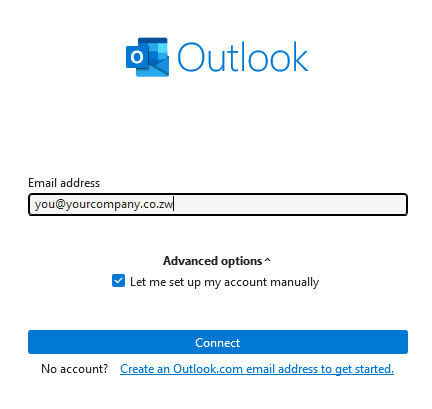
- Open Outlook and enter your e-mail address. (If you are setting up an additional account, click File and Add Account)
- Select Advanced Options
- Check Let my setup my account manually.
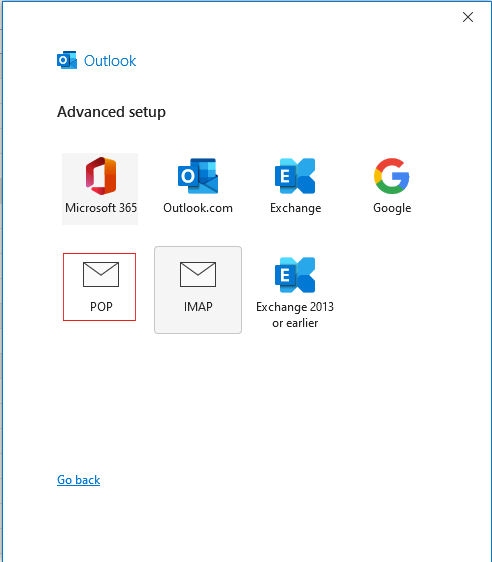
- Select Account Type: Choose POP (or POP3) from the list.
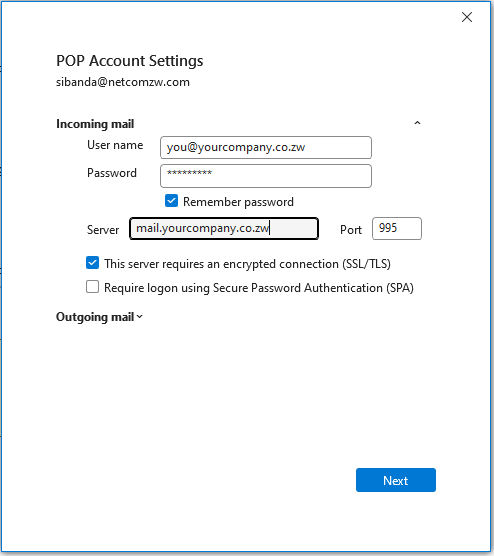
- Enter Incoming Server Settings:
- Incoming Mail Server: mail.yourcompany.co.zw
- Port: 995
- Encryption: SSL/TLS
- Authenticate: Ensure that This server requires an encrypted connection (SSL/TLS) is checked.
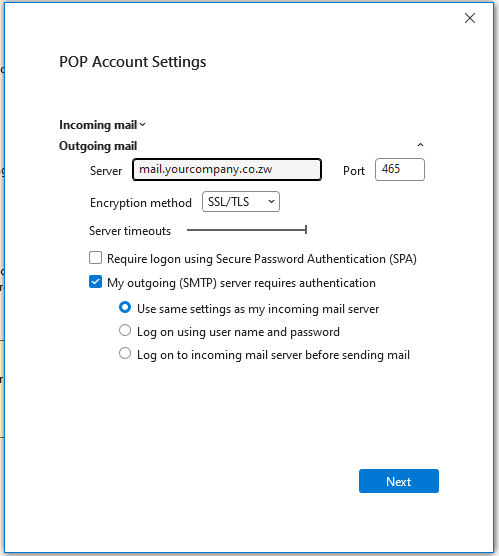
- Enter Outgoing Server (SMTP) Settings:
- Outgoing Mail Server: mail.yourcompany.co.zw
- Port: 465
- Encryption: SSL/TLS
- Authenticate: Ensure that My outgoing server (SMTP) requires authentication is checked.
- Finish: Enter your mailbox password and click Connect, Next, or Done to test and save the account
NB: Some steps (i.e 3 & 4) maybe automatically skipped depending on your version of Outlook.